

Before using a particular login method, verify that it’s enabled and configured in the project console.
View Console button to open the Project Console in your browser.
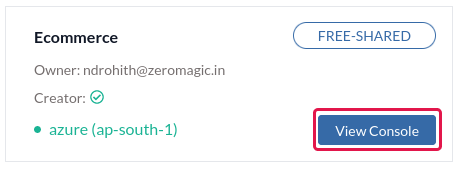
Users section on the sidebar of the project console.
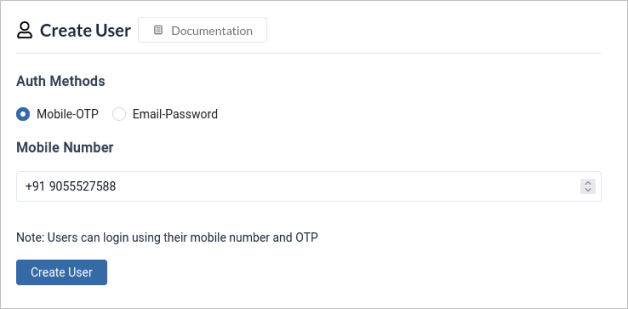
Option 1: Mobile-OTP Authentication
Mobile OTP authentication enables users to verify their identities using a one-time password sent to their mobile devices.-
Click on
Create Userbutton and this will typically launch a form to define the new user’s details. -
Select the authentication method to
Mobile-OTPauthentication. -
Enter the new user’s valid
mobile numberin the designated field. This number will be used to send the one-time password (OTP) for login. -
Click on
Create Userand you’ve successfully created a new user account that utilizes mobile OTP authentication.
Option 2: Email-Password Authentication
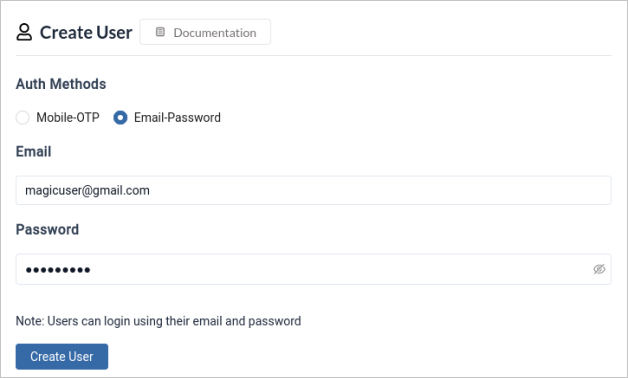
Email & Password authentication provides users with a traditional method of verifying their identities using their email address and a password.-
Click on
Create Userbutton and this will typically launch a form to define the new user’s details. -
Select the authentication method to
Email-Passwordauthentication. -
Enter the new user’s valid
emailandpasswordin the designated field.
Note: Password can be later changed by user
- Click on
Create Userand you’ve successfully created a new user account that utilizes Email-Password authentication.
Option 3: Email-OTP Authentication
Email-OTP authentication provides an additional layer of security for user accounts by integrating one-time passwords (OTPs) delivered via email.- Create user using
Email-Passwordby follow the steps of Email-Password Authentication