

Create Organisation
After registering on Zeromagic, you can create an Organization. You have the choice to create this during the signup process or at a later stage by going to the organisation page on the Zeromagic platform. Enter name and description for your organization. This name will help you identify and manage your organization within Zeromagic.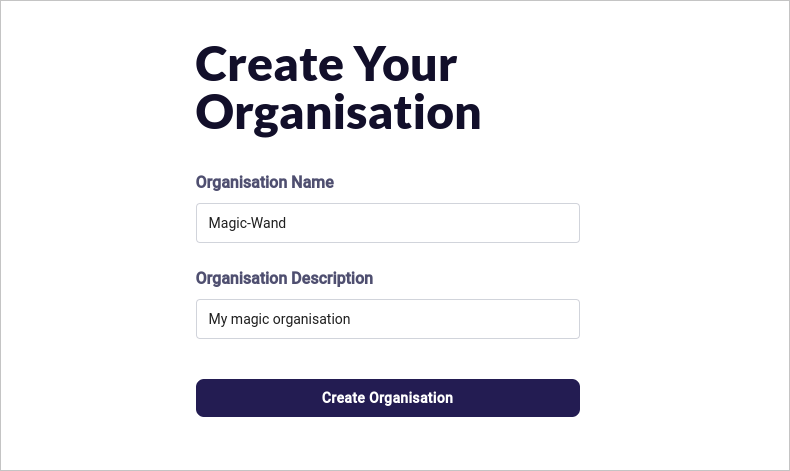
Manage Your Organisation
After creating an organization, you’ll be directed to its dedicated dashboard. Here, you can view details, manage projects, and invite members.Collaborators
Navigate toCollaborators in organisation sidebar where you can easily manage your projects by adding collaborators to your organization, providing them with restricted access based on their assigned roles.
1. Invite Collaborator
Enter the email address of the collaborator and specify their role within the organization. Click on theInvite button to send the invitation via email. You can manage all your invitations in the My Invitations section
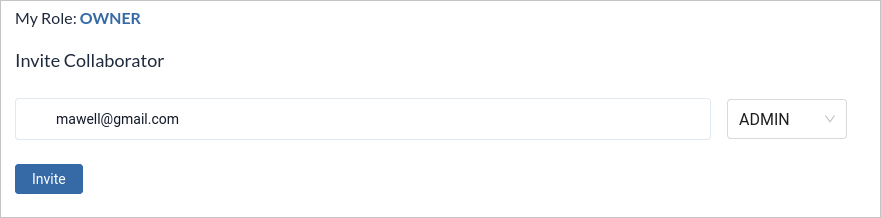
Only Owner and Admin can invite collaborators. Collaborators feature is not available in the free tier.
2. Accept Invitation
When you receive the invitation email, click on the provided link to Accept the invitation.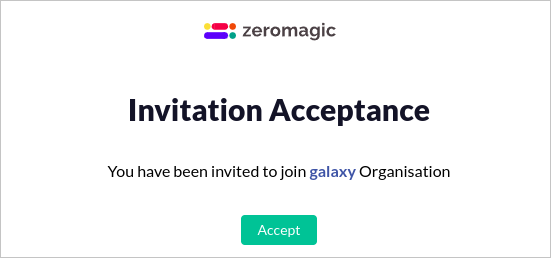
Note: Make sure you are logged in before accepting the invitation. If not, log in to your account and try accepting the invitation.
Settings
Navigate toSettings in organisation sidebar where you can edit your organisation details. By clicking on Delete you can delete your organisation permanently.