

Step 1: Login to Project Console
Login to Zeromagic Platform and go to youProject Console. Now navigate to GraphQL in the sidebar of the console.
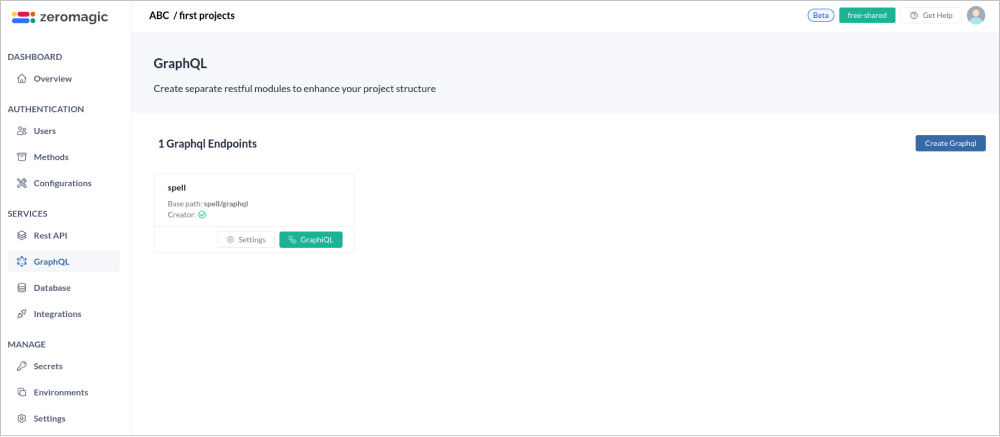
Step 2: Create a GraphQL Endpoint
Navigate toCreate GraphQL button and this will open a form to create a GraphQL endpoint.
- Name : Name of the Graph API
- API Path: Define the base URL path that will be used to access the API endpoints.
- Authentication: By default, the endpoint is accessible to
all. You can update the authentication toApp Keyin the graphql settings section.
graphql/ will be appened to the base URL path. You can not pass anyother parameters such as query parameters, etc in the API Path field.Example
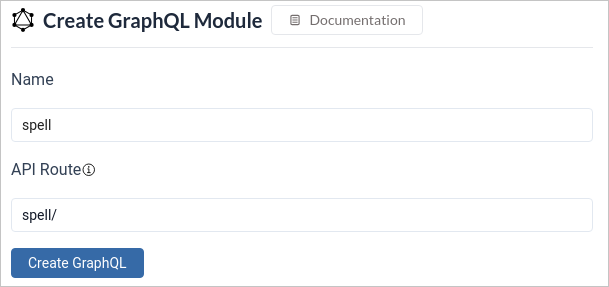
GraphiQL button, this will take you to the GraphQL console.
Step 3: Create a Database
Create a database (BYOD or on-premises ) namedForests in your Database section in the project console.
The created database will be listed in the Connectors section in the GraphQL Console

Step 4: Create a logical model
Within each data source, you will see a list of tables displayed in annot listed tab initially.

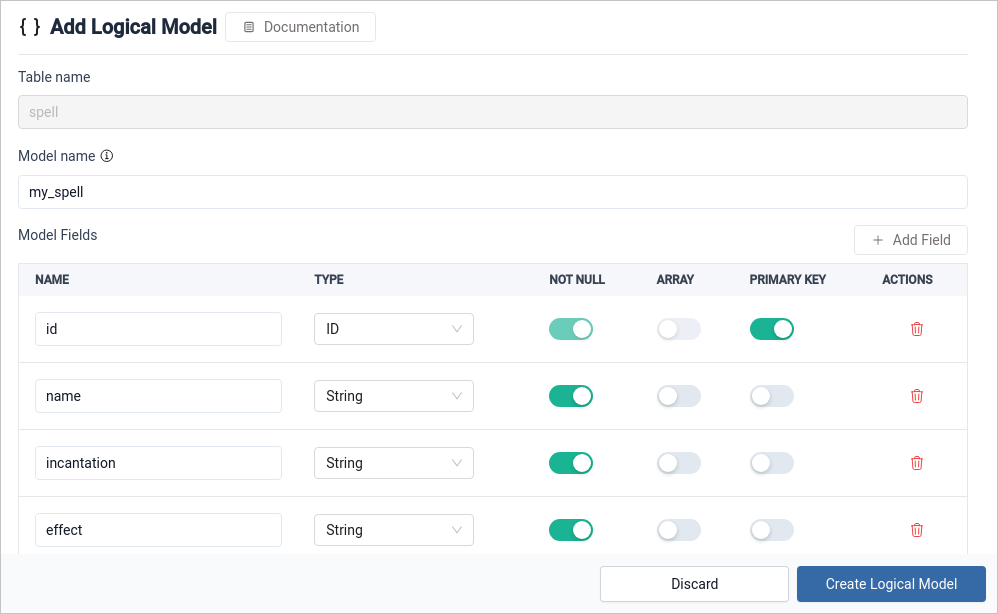
list option which will open the model editor.
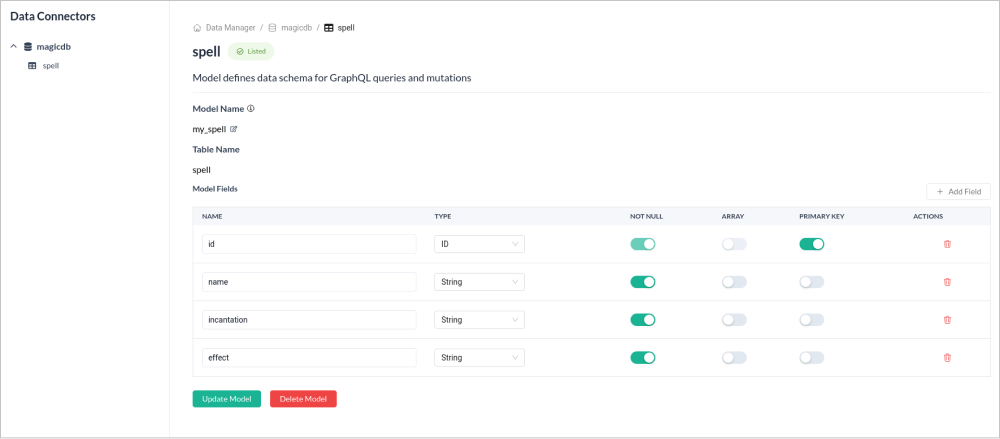
A logical model is a representation of your data structure that will be used in your GraphQL schema.Here, you can define model fields and relationships, tailoring the model to fit your specific needs. After defining the model click on
Create Logical Model button to create your logical model.
You can also use Magic AI Schema Builder to build your GraphQL schema.
Listed tab shows all the tables you’ve chosen to list. Click on a specific table to view detailed information about the logical model. On this page, you can edit model fields and relationships, making adjustments as needed to reflect changes in your data structure or requirements.
Step 5: Graphql Schema Registry
You can view theschema by nagivating to the GraphQL page.
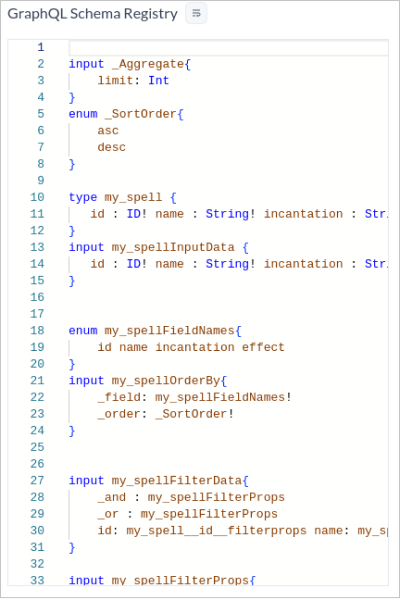
The schema is automatically generated based on model fields and cannot be edited.
Step 5: Test in GraphiQL
Click on theGraphQL option in the sidebar to open the GraphiQL playground.
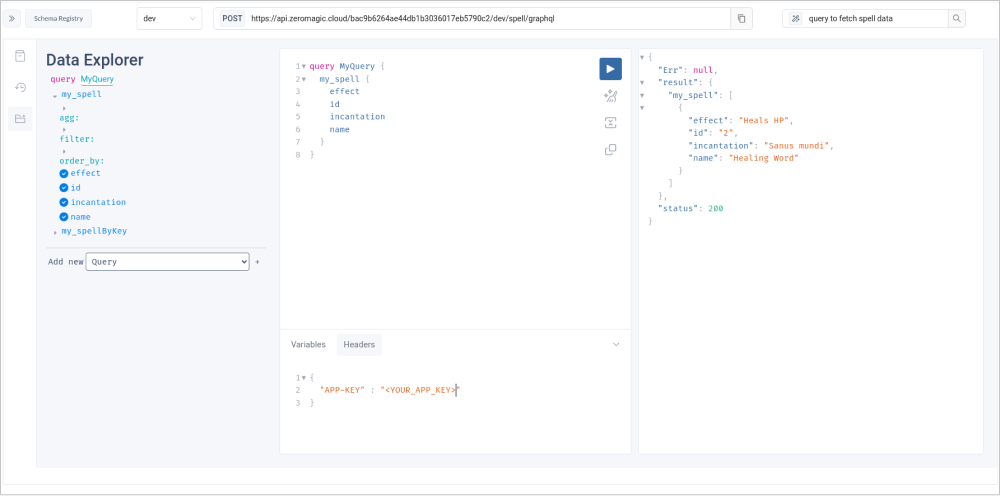
Pass you APP-KEY in the headers (since your authentication is selected as APP-KEY) which can be found in your project settings.
Provide the graphql query and hit the Execute Query button to execute the query.
You can also use Magic AI Query Generator to build your GraphQL schema.
About GraphiQL
The GraphiQL allows you to test your queries and mutations in real-time, ensuring everything works as expected. This interface includes three useful menus on the right sidebar:- Show Documentation Explorer: Access a detailed, interactive representation of your GraphQL schema. This helps you understand the available data types, fields, and relationships within your data.
- Show History: Review your previously executed queries for quick reference.
- Show Data Explorer: Visually navigate your data structures and explore them without writing complex queries.