


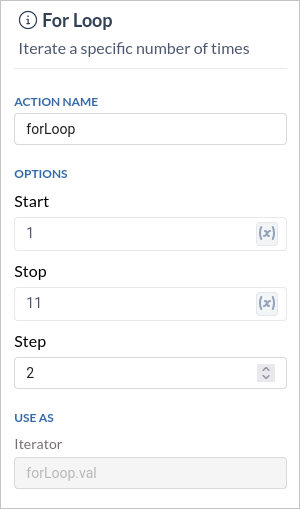
- Start: The initial value of the loop variable.
- Stop: The value at which the loop terminates.
- Step: The increment (or decrement) by which the loop counter is updated after each iteration.
Example: Using For Loops in a Workflow
Let’s consider a simple example to illustrate how to use for loops with start, stop, and step values in a workflow. Suppose we want to create a workflow that sums a sequence of even numbers from 1 to 11, incrementing by 2 each time. Here’s how you can set it up:- Start Value: 1
- Stop Value: 11
- Step Value: 2
Sample Pseudo Code
Step 1: Declare variables
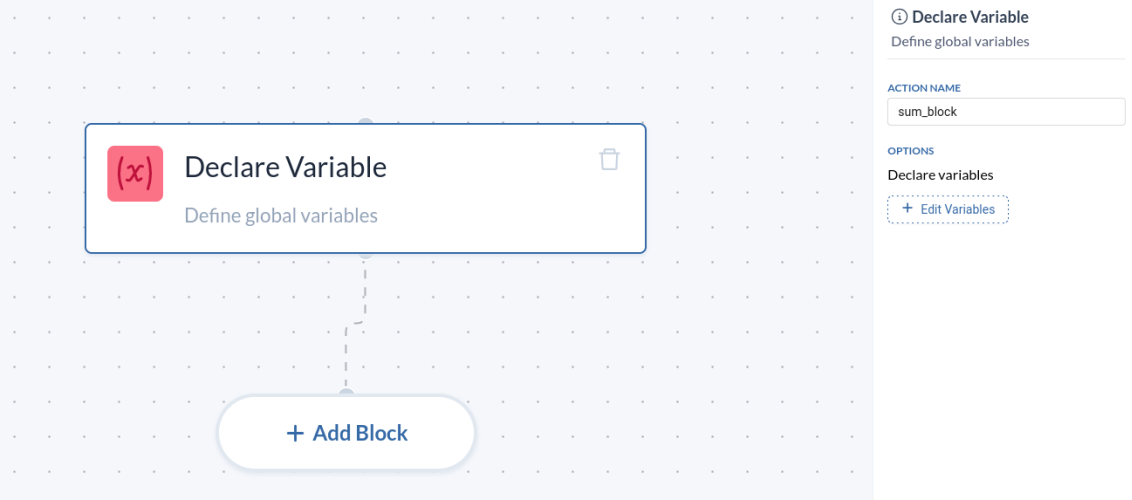
Add aVariable Block to the workflow and create a new variable total_sum of type Number with initial value 0.

Step 2: For Loop Block
Add aFor Loop Block to the workflow and declare start, stop and step value.
Step 3: Sum values inside Loop Block
Click on theexpand icon on the For Loop Block and this prompts to flow builder page where you can build you logic. Add a Variable block to sum the values.

Step 4: Build JSON Object
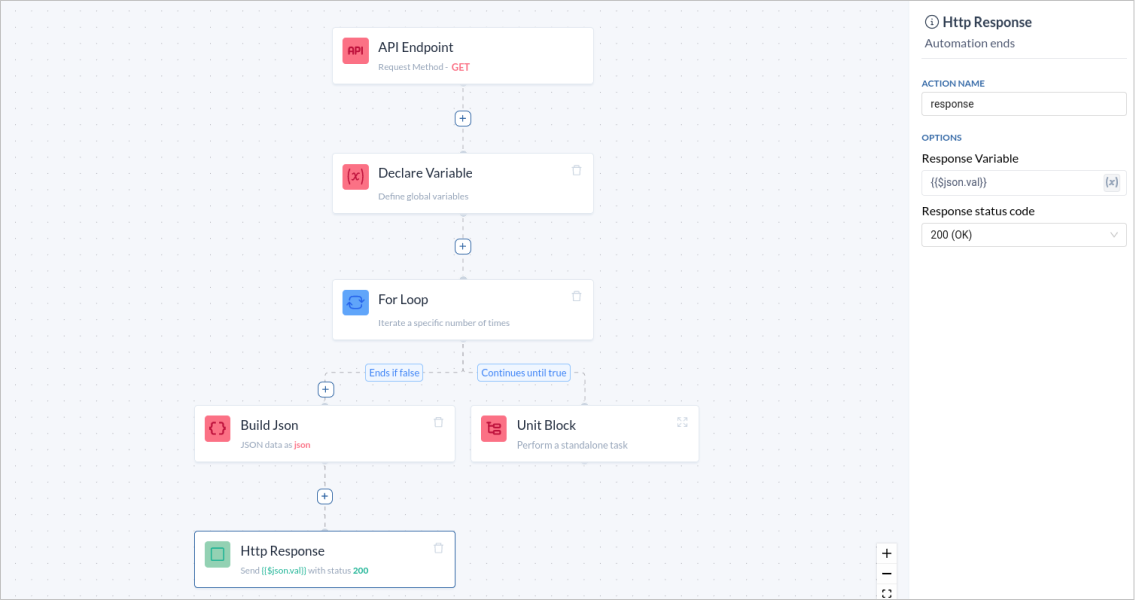
Add a new block calledBuild JSON and name it json. This block will be responsible for creating the final output of your workflow, which is in JSON format. In this case, we want to include the calculated total_sum.

Step 5: Return Success Response
Add a final block calledHTTP Response. This block will send the response back to the system that triggered the workflow.Inside the “HTTP Response” block, configure it to return the JSON object you created in the previous step.
Documentation of For Loop can be found here