> ## Documentation Index
> Fetch the complete documentation index at: https://nocode-docs.zeroagent.io/llms.txt
> Use this file to discover all available pages before exploring further.
# Declare Variable
The Declare Variable block is used to define a variable within the workflow. A variable can be declared with one of five data types:
1. Text
2. Number
3. Boolean
4. List
5. Time
Each datatype has certain properties that can be used.
### Text
Stores string data allowing you to create and manage string-based variables.
 The text datatype has the following properties that can be used.
| Operations | Description |
| ------------------ | ------------------------------------------------ |
| Set | Declare a string or Overwrite an existing string |
| Prepend | Add string value at start |
| Append | Add string value at end |
### Number
Stores numerical data, representing quantities, counts, or measurements.
The text datatype has the following properties that can be used.
| Operations | Description |
| ------------------ | ------------------------------------------------ |
| Set | Declare a string or Overwrite an existing string |
| Prepend | Add string value at start |
| Append | Add string value at end |
### Number
Stores numerical data, representing quantities, counts, or measurements.
 The number datatype has the following properties that can be used.
| Operations | Description |
| ------------------ | ------------------------------------------------ |
| Set | Declare a number or Overwrite an existing number |
| Plus | Add a value |
| Minus | Subtract a value |
### Boolean
Represents true or false values, often used for making conditional decisions or indicating states.
The number datatype has the following properties that can be used.
| Operations | Description |
| ------------------ | ------------------------------------------------ |
| Set | Declare a number or Overwrite an existing number |
| Plus | Add a value |
| Minus | Subtract a value |
### Boolean
Represents true or false values, often used for making conditional decisions or indicating states.
 The boolean datatype has the following properties that can be used.
| Operations | Description |
| ------------------ | -------------------------------------------------- |
| Set | Declare a boolean or Overwrite an existing boolean |
### List
Stores an ordered collection of items of `string` or `number` data type, ideal for managing multiple values.
The boolean datatype has the following properties that can be used.
| Operations | Description |
| ------------------ | -------------------------------------------------- |
| Set | Declare a boolean or Overwrite an existing boolean |
### List
Stores an ordered collection of items of `string` or `number` data type, ideal for managing multiple values.
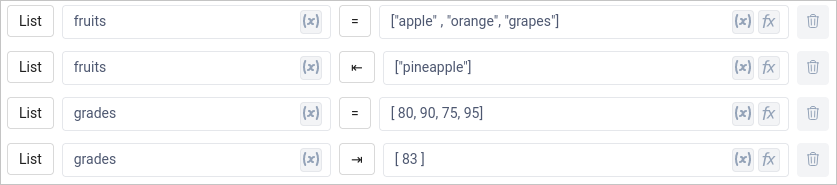 The list datatype has the following properties that can be used.
| Operations | Description |
| ------------------ | ---------------------------------------------- |
| Set | Declare a array or Overwrite an existing array |
| Prepend | Add a value at start of list |
| Append | Add a value at end of list |
### Time
Stores specific points in time (e.g., dates, timestamps) or durations (e.g., hours, minutes).
The list datatype has the following properties that can be used.
| Operations | Description |
| ------------------ | ---------------------------------------------- |
| Set | Declare a array or Overwrite an existing array |
| Prepend | Add a value at start of list |
| Append | Add a value at end of list |
### Time
Stores specific points in time (e.g., dates, timestamps) or durations (e.g., hours, minutes).
 The time datatype has the following properties that can be used.
| Operations | Description |
| ------------------ | -------------------------------------------------------- |
| Set | Declare a time value or Overwrite an existing time value |
[Check here](/variables/environment-variables/) to learn about how to access the variables inside the workflow.
The time datatype has the following properties that can be used.
| Operations | Description |
| ------------------ | -------------------------------------------------------- |
| Set | Declare a time value or Overwrite an existing time value |
[Check here](/variables/environment-variables/) to learn about how to access the variables inside the workflow.