> ## Documentation Index
> Fetch the complete documentation index at: https://nocode-docs.zeroagent.io/llms.txt
> Use this file to discover all available pages before exploring further.
# Quickstart
Quickly connect a new, existing, or demo databases with the Zeromagic Platform. You can connect multiple databases and build one easy-to-use Restful or GraphQL API for all your data.
Connection methods
You can connect to databases by using environment variables, the raw connection string or connection parameters. Employing environment variables is advised for enhanced security, as connection details set via a string may become exposed in Metadata.
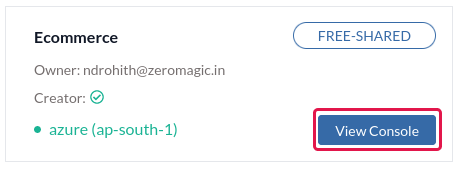
If you have created your project in Zeromagic platform, click on the `View Console` button to open the Project Console in your browser.
 Navigate to `Database` section on the sidebar of the project console.
## Option 1: Creating a Database on the platform
This option allows you to create a new Azure Cosmos DB instance directly within the Zeromagic platform. This is ideal if you don't have an existing database or prefer a managed solution.
* To get started quickly with a database,click `Create Database`.
* Choose a name for your database to identify it on the platform.
* Select `Cosmos DB` from the available database options.
Click on `Connect Database` to create and connect a new Cosmos database to your Project.
Navigate to `Database` section on the sidebar of the project console.
## Option 1: Creating a Database on the platform
This option allows you to create a new Azure Cosmos DB instance directly within the Zeromagic platform. This is ideal if you don't have an existing database or prefer a managed solution.
* To get started quickly with a database,click `Create Database`.
* Choose a name for your database to identify it on the platform.
* Select `Cosmos DB` from the available database options.
Click on `Connect Database` to create and connect a new Cosmos database to your Project.
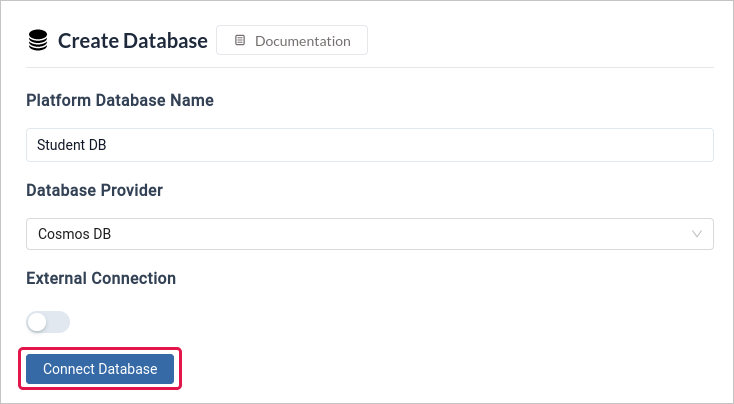 Cosmos DB is available only on shared instances for free tier. You cannot edit the configuration details in free instance.
## Option 2: Connecting to an External Database
This option allows you to connect Zeromagic to an already-existing database that is managed somewhere else.
The connection details can only be connected to **Azure Cosmos DB for NoSQL**.
You can create your Cosmos DB by following this [tutorial](https://learn.microsoft.com/en-us/azure/cosmos-db/try-free)
* To get started quickly with a database,click `Create Database`.
* Choose a name for your database to identify it on the platform.
* To use an existing database, toggle `External Connection`.
* Enter the details of your database connection. Enter your `Cosmos Database name`, which is the name you assigned to your database in Azure Cosmos DB.
Cosmos DB is available only on shared instances for free tier. You cannot edit the configuration details in free instance.
## Option 2: Connecting to an External Database
This option allows you to connect Zeromagic to an already-existing database that is managed somewhere else.
The connection details can only be connected to **Azure Cosmos DB for NoSQL**.
You can create your Cosmos DB by following this [tutorial](https://learn.microsoft.com/en-us/azure/cosmos-db/try-free)
* To get started quickly with a database,click `Create Database`.
* Choose a name for your database to identify it on the platform.
* To use an existing database, toggle `External Connection`.
* Enter the details of your database connection. Enter your `Cosmos Database name`, which is the name you assigned to your database in Azure Cosmos DB.
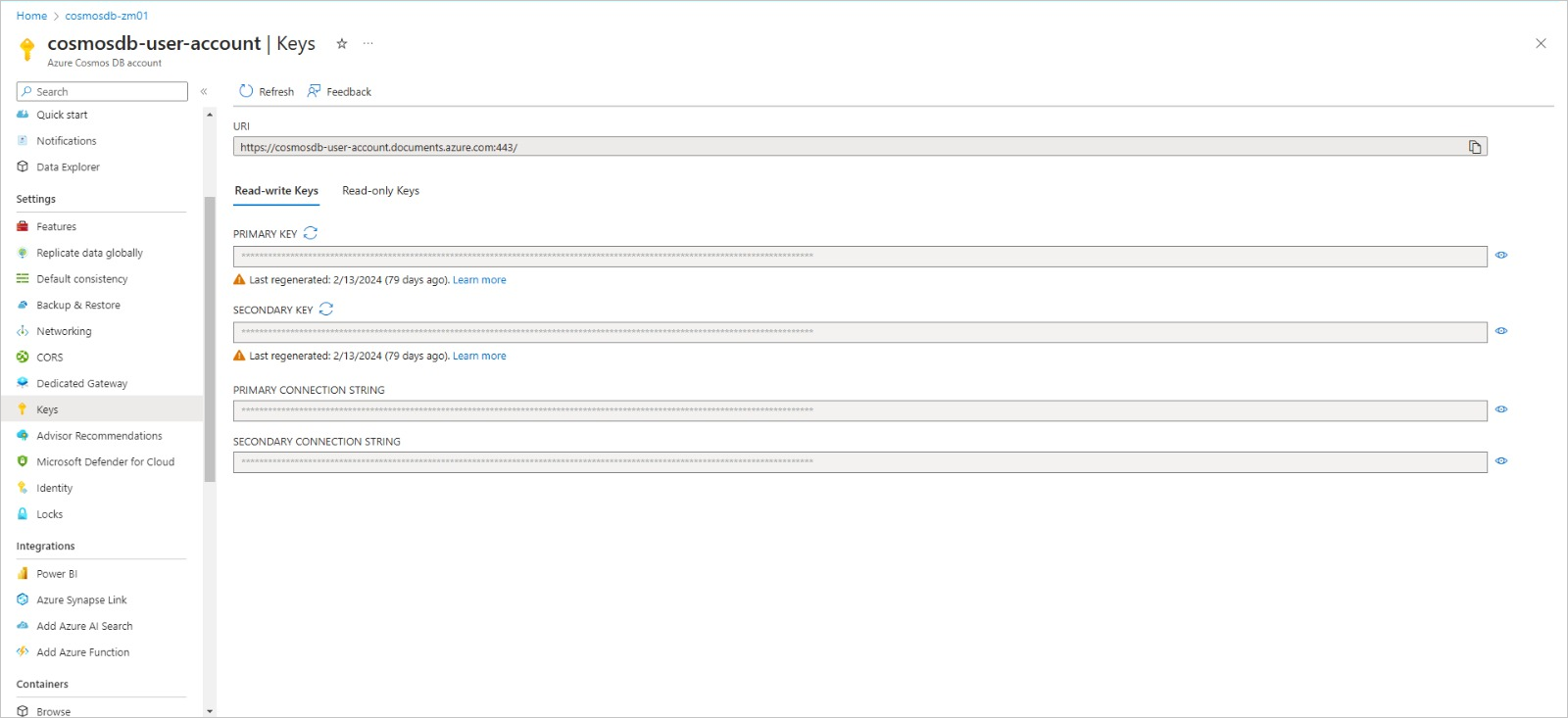
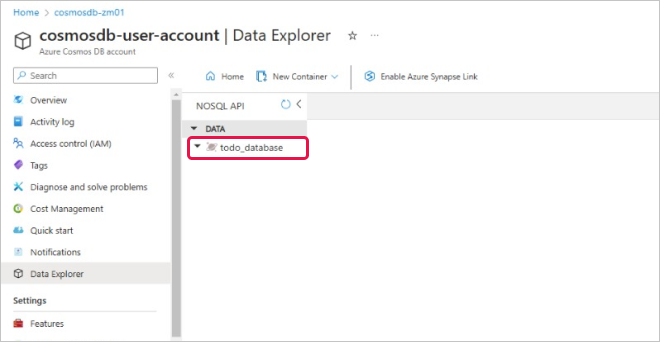 * Provide your Azure Cosmos DB `Connection URI`. This is a unique string that identifies your database instance and allows secure access. You can find the connection URI within the Azure portal for your Cosmos DB account.
* You have the option to use either the **PRIMARY KEY** or **SECONDARY KEY** as your `Connection Key` to connect to your external database.
* Provide your Azure Cosmos DB `Connection URI`. This is a unique string that identifies your database instance and allows secure access. You can find the connection URI within the Azure portal for your Cosmos DB account.
* You have the option to use either the **PRIMARY KEY** or **SECONDARY KEY** as your `Connection Key` to connect to your external database.
 Click on `Connect Database` to connect to your existing Cosmos database to your Project.
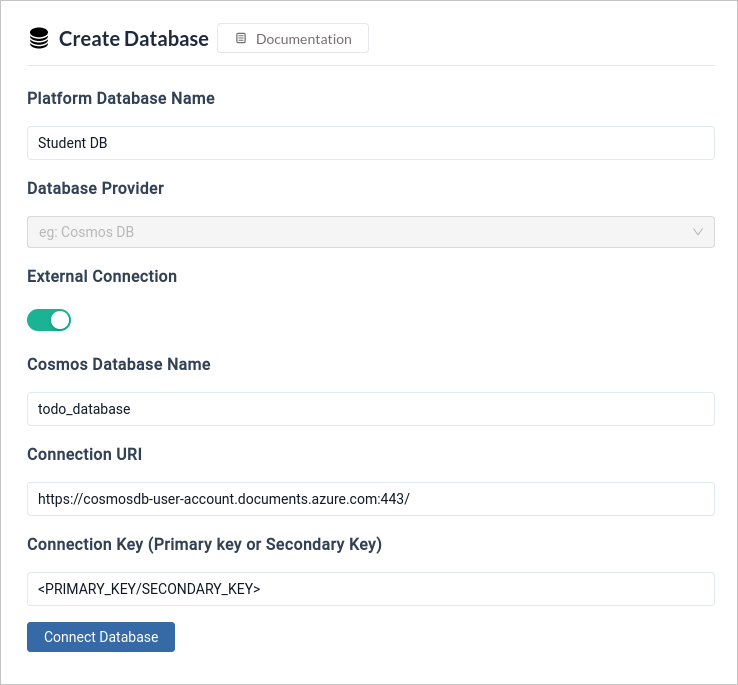 Your external Cosmos database will be connected to the platform, allowing you to transfer data seamlessly.
### More databases
More database support will soon be available. Here, you can stay updated with supported [databases](/datasources/introduction).
### Quick Links
[Try Azure Cosmos DB free](https://learn.microsoft.com/en-us/azure/cosmos-db/try-free)
Your external Cosmos database will be connected to the platform, allowing you to transfer data seamlessly.
### More databases
More database support will soon be available. Here, you can stay updated with supported [databases](/datasources/introduction).
### Quick Links
[Try Azure Cosmos DB free](https://learn.microsoft.com/en-us/azure/cosmos-db/try-free)