> ## Documentation Index
> Fetch the complete documentation index at: https://nocode-docs.zeroagent.io/llms.txt
> Use this file to discover all available pages before exploring further.
# Environment
Environments provide a structured approach to managing deployments for your projects. Each environment acts as a distinct stage in your development lifecycle, allowing you to isolate, test, and ultimately deploy your user's API to production.
An environment is required to deploy and execute your APIs. You can create multiple environments for a single project, where each environment can be executed independently with different performance associated with the tier plan.
## Create Environment
1. To create a new environment, head to the **Environments** section in the **project console**.
 2. Click `Create Environment` and will launch a form to define your environment details.
3. Choose a *"name"* that clearly identifies the purpose of the environment.
4. Select the specific `database` you want to connect to from the available dropdown menu. This database will be linked to this environment.
5. By clicking on `Create Environment` will set up your new environment, ready for deployment process.
2. Click `Create Environment` and will launch a form to define your environment details.
3. Choose a *"name"* that clearly identifies the purpose of the environment.
4. Select the specific `database` you want to connect to from the available dropdown menu. This database will be linked to this environment.
5. By clicking on `Create Environment` will set up your new environment, ready for deployment process.
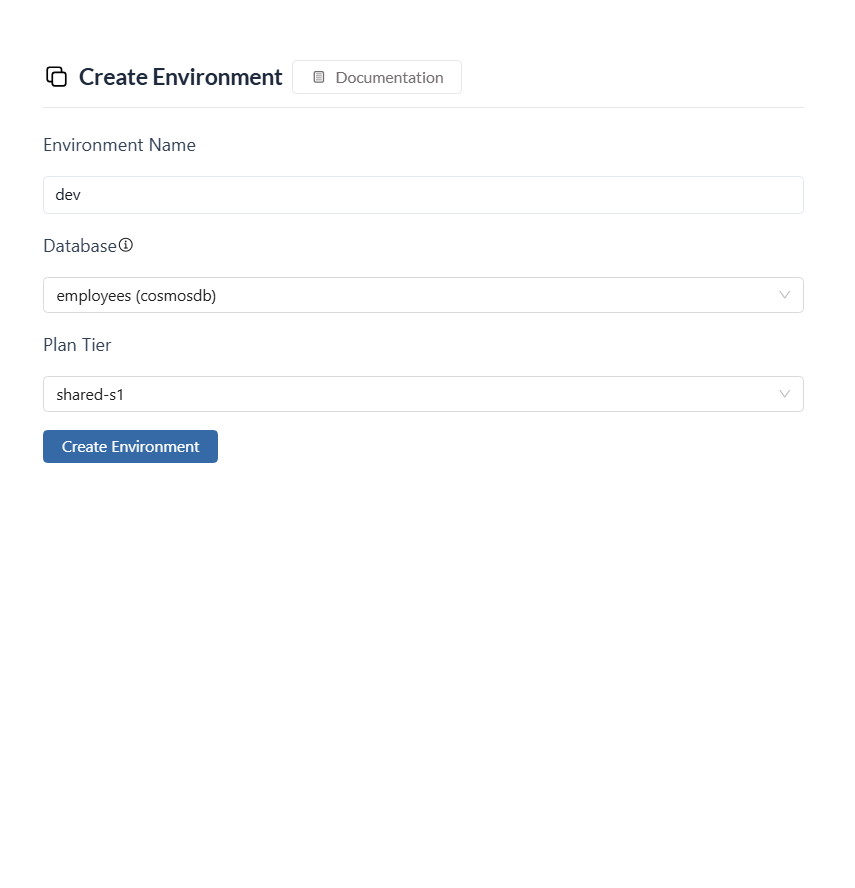 While creating an environment, you can choose the database you want to map. Your REST API operations will be performed only in this mapped database. Other database are not affected.
## Manage Environment
1. Click on the specific environment you want to manage. This will open the environment's settings page.
2. Within the settings section, you can modify the `database` configuration associated with this environment
While creating an environment, you can choose the database you want to map. Your REST API operations will be performed only in this mapped database. Other database are not affected.
## Manage Environment
1. Click on the specific environment you want to manage. This will open the environment's settings page.
2. Within the settings section, you can modify the `database` configuration associated with this environment
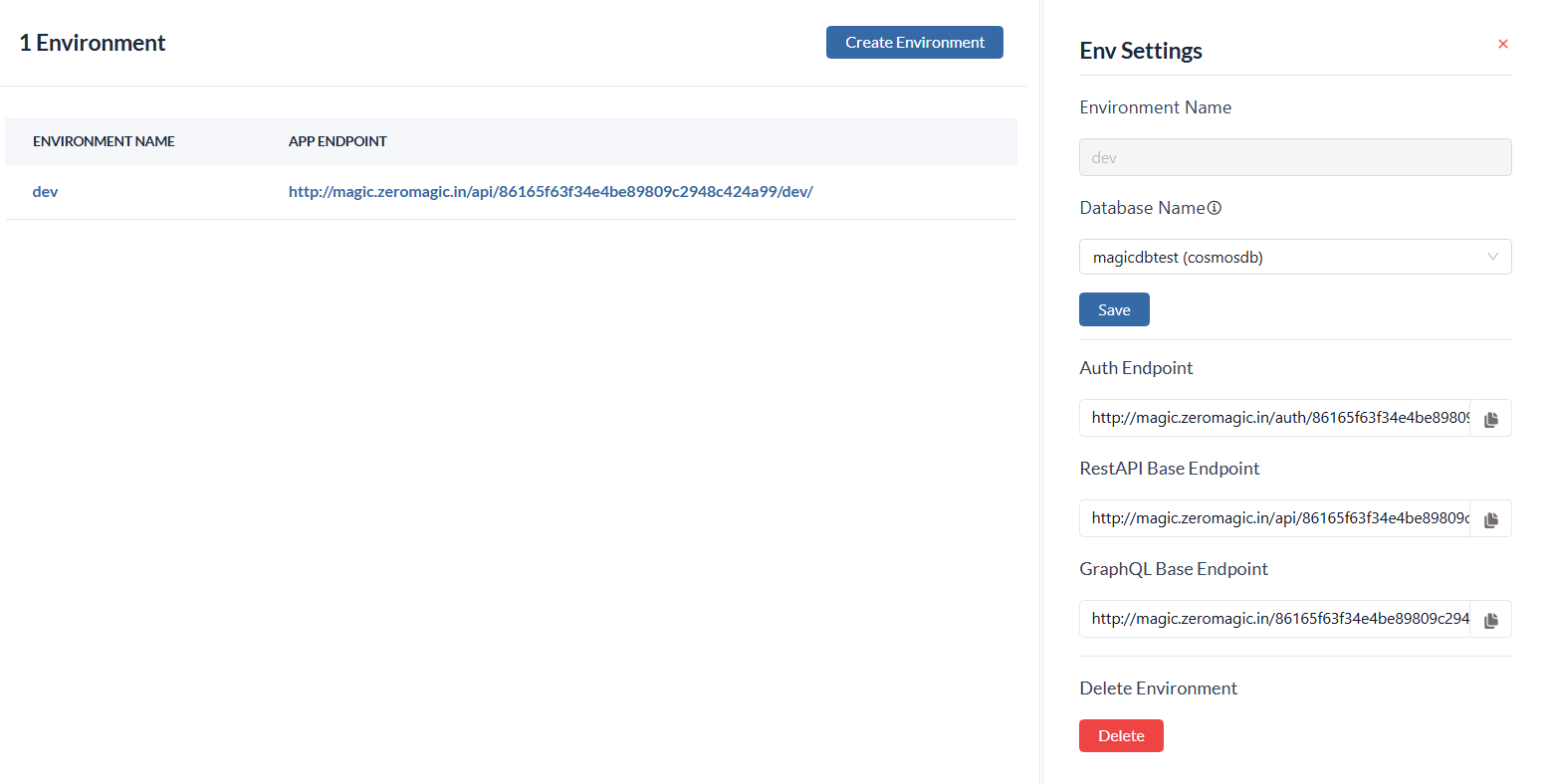 3. To permanently delete a environment, click the **Delete** in the settings section.
Please note that the free tier of Zeromagic allows for only one environment.
3. To permanently delete a environment, click the **Delete** in the settings section.
Please note that the free tier of Zeromagic allows for only one environment.