> ## Documentation Index
> Fetch the complete documentation index at: https://nocode-docs.zeroagent.io/llms.txt
> Use this file to discover all available pages before exploring further.
# Users
User management is a fundamental aspect of any application, and Zeromagic makes it easy to onboard and manage new users into your projects. With our intuitive user creation process, you can quickly add new users and define their authentication methods to ensure secure access to your application
Before using a particular login method, verify that it's enabled and configured in the project console.
If you have created your project in Zeromagic platform, click on the `View Console` button to open the Project Console in your browser.
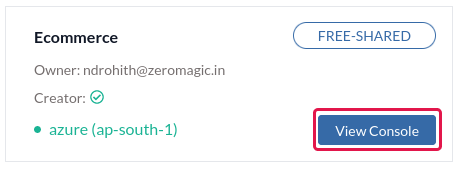 Navigate to `Users` section on the sidebar of the project console.
## Option 1: Mobile-OTP Authentication
Mobile OTP authentication enables users to verify their identities using a one-time password sent to their mobile devices.
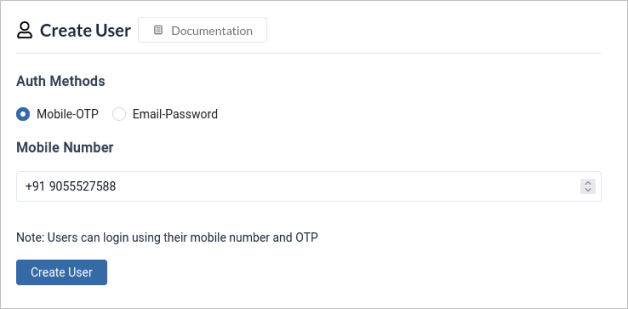
* Click on `Create User` button and this will typically launch a form to define the new user's details.
* Select the authentication method to `Mobile-OTP` authentication.
* Enter the new user's valid `mobile number` in the designated field. This number will be used to send the one-time password (OTP) for login.
* Click on `Create User` and you've successfully created a new user account that utilizes mobile OTP authentication.
Navigate to `Users` section on the sidebar of the project console.
## Option 1: Mobile-OTP Authentication
Mobile OTP authentication enables users to verify their identities using a one-time password sent to their mobile devices.
* Click on `Create User` button and this will typically launch a form to define the new user's details.
* Select the authentication method to `Mobile-OTP` authentication.
* Enter the new user's valid `mobile number` in the designated field. This number will be used to send the one-time password (OTP) for login.
* Click on `Create User` and you've successfully created a new user account that utilizes mobile OTP authentication.
 ## Option 2: Email-Password Authentication
Email & Password authentication provides users with a traditional method of verifying their identities using their email address and a password.
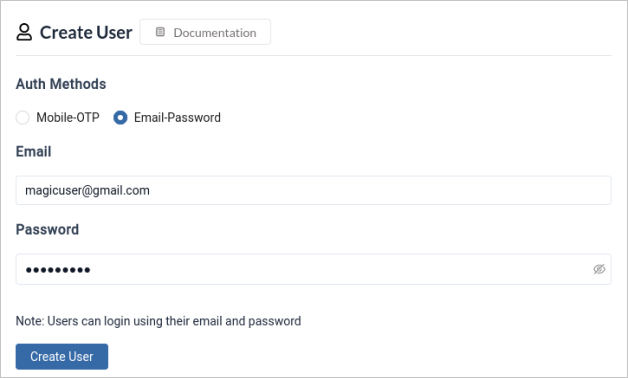
* Click on `Create User` button and this will typically launch a form to define the new user's details.
* Select the authentication method to `Email-Password` authentication.
* Enter the new user's valid `email` and `password` in the designated field.
> *Note: Password can be later changed by user*
* Click on `Create User` and you've successfully created a new user account that utilizes *Email-Password* authentication.
## Option 2: Email-Password Authentication
Email & Password authentication provides users with a traditional method of verifying their identities using their email address and a password.
* Click on `Create User` button and this will typically launch a form to define the new user's details.
* Select the authentication method to `Email-Password` authentication.
* Enter the new user's valid `email` and `password` in the designated field.
> *Note: Password can be later changed by user*
* Click on `Create User` and you've successfully created a new user account that utilizes *Email-Password* authentication.
 ## Option 3: Email-OTP Authentication
Email-OTP authentication provides an additional layer of security for user accounts by integrating one-time passwords (OTPs) delivered via email.
* Create user using `Email-Password` by follow the steps of [Email-Password Authentication](#option-2-email-password-authentication)
Once a user is created with Email-Password authentication, they automatically gain access to Email-OTP authentication, enhancing the security of their login process.
# Enable Authentication Methods
More database support will soon be available. Here, you can stay updated with supported [methods](/authentication/methods/introduction).
## Quick Links
1. [Authentication Methods](/authentication/methods/introduction)
2. [Template Configurations](/authentication/templates)
## Option 3: Email-OTP Authentication
Email-OTP authentication provides an additional layer of security for user accounts by integrating one-time passwords (OTPs) delivered via email.
* Create user using `Email-Password` by follow the steps of [Email-Password Authentication](#option-2-email-password-authentication)
Once a user is created with Email-Password authentication, they automatically gain access to Email-OTP authentication, enhancing the security of their login process.
# Enable Authentication Methods
More database support will soon be available. Here, you can stay updated with supported [methods](/authentication/methods/introduction).
## Quick Links
1. [Authentication Methods](/authentication/methods/introduction)
2. [Template Configurations](/authentication/templates)