> ## Documentation Index
> Fetch the complete documentation index at: https://nocode-docs.zeroagent.io/llms.txt
> Use this file to discover all available pages before exploring further.
# Basic Connections
Basic Connections are variety of built-in authentication methods that you can readily enable and configure. These methods offer secure and convenient ways for users to access your platform.
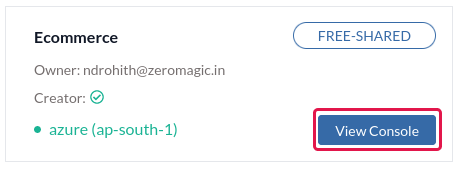
If you have created your project in Zeromagic platform, click on the `View Console` button to open the Project Console in your browser.
 Navigate to `Methods` section on the sidebar of the project console.
## Connection 1: Email & Password
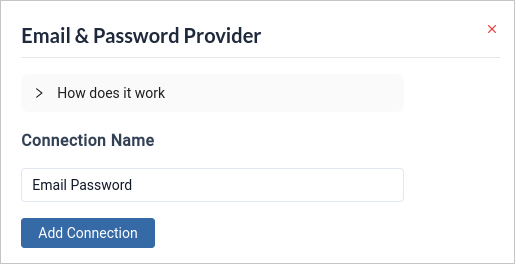
Navigate to the Providers tab and select `Email & Password`. This action will prompt the configuration form to appear. Click on `Add Connection` to easily link your connection to the platform with just a single click.
Navigate to `Methods` section on the sidebar of the project console.
## Connection 1: Email & Password
Navigate to the Providers tab and select `Email & Password`. This action will prompt the configuration form to appear. Click on `Add Connection` to easily link your connection to the platform with just a single click.
 ## Connection 2: Email & OTP
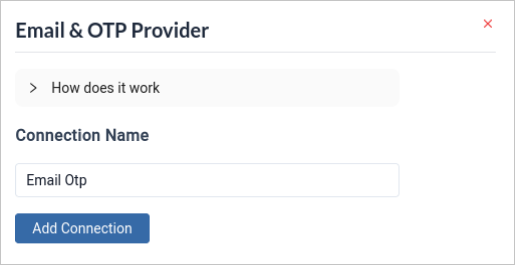
Navigate to the Providers tab and select `Email & OTP`. This action will prompt the configuration form to appear. Click on `Add Connection` to easily link your connection to the platform with just a single click.
## Connection 2: Email & OTP
Navigate to the Providers tab and select `Email & OTP`. This action will prompt the configuration form to appear. Click on `Add Connection` to easily link your connection to the platform with just a single click.
 ## Connection 3: Mobile & OTP
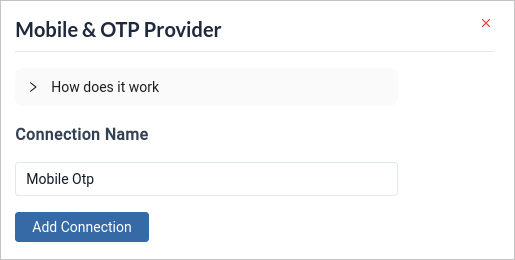
Navigate to the Providers tab and select `Mobile & OTP`. This action will prompt the configuration form to appear. Click on `Add Connection` to easily link your connection to the platform with just a single click.
## Connection 3: Mobile & OTP
Navigate to the Providers tab and select `Mobile & OTP`. This action will prompt the configuration form to appear. Click on `Add Connection` to easily link your connection to the platform with just a single click.
 [Twilio Integration](/integrations/twilio) must be configured to use this basic connection.
## Connection 4: Username & Password
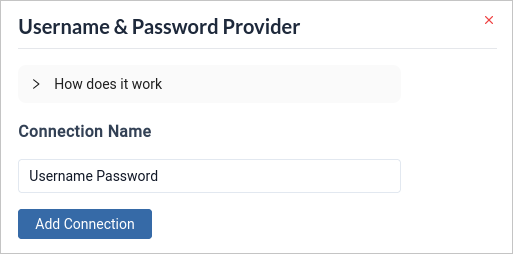
Navigate to the Providers tab and select `Username & Password`. This action will prompt the configuration form to appear. Click on `Add Connection` to easily link your connection to the platform with just a single click.
[Twilio Integration](/integrations/twilio) must be configured to use this basic connection.
## Connection 4: Username & Password
Navigate to the Providers tab and select `Username & Password`. This action will prompt the configuration form to appear. Click on `Add Connection` to easily link your connection to the platform with just a single click.